An old phone doesn’t always deserve the trash bin. Most slowdowns come from software clutter, not failing hardware. A few targeted fixes can make a three or four-year-old phone feel noticeably snappier again, often without spending a single dollar.
It’s easy to assume a sluggish phone means the hardware has finally given up, but that’s rarely the whole story. Over months and years, apps pile up, cached files accumulate, storage fills to the brim, and background processes quietly multiply without you ever noticing. None of that is a hardware problem. It’s just digital clutter building up the same way a desk or a closet does over time, and like clutter, it can be cleared out.
The good news is that fixing it doesn’t require any technical expertise or special tools. Most of what slows a phone down can be reversed in a few minutes through your existing settings menu. You don’t need a repair shop, and you definitely don’t need to spend money on a new device just because the one in your pocket feels a little tired.
This guide walks through the real fixes that actually make a difference. It skips the vague “just restart it” advice and focuses on changes that genuinely restore speed, in an order that makes sense to follow.
Clear Out Storage Space First
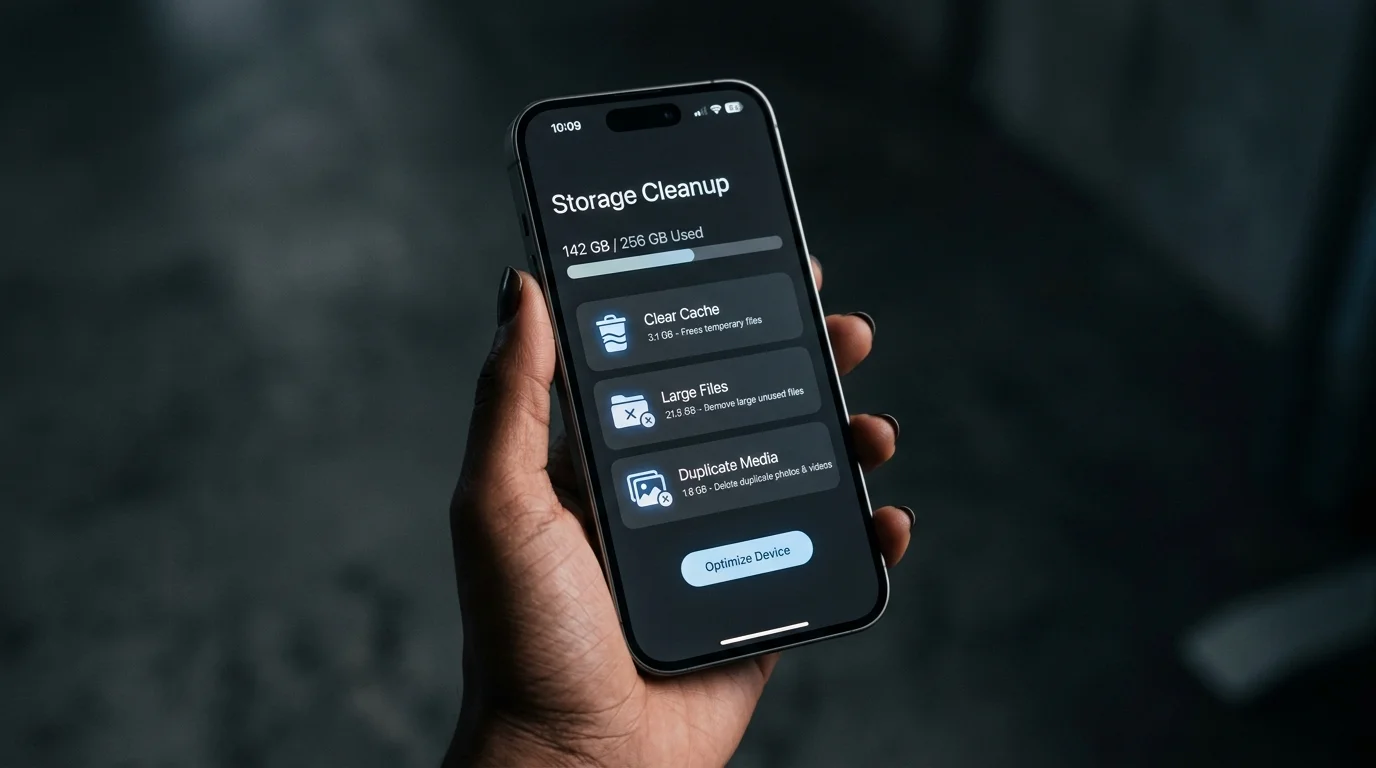
A nearly full phone runs slower than one with breathing room. Your phone’s operating system needs free space to manage background processes, cache files, and app updates properly. Once storage gets too tight, performance drops across the board.
Start by deleting apps you no longer use. Check your camera roll for duplicate photos, old screenshots, and videos you’ve already backed up elsewhere. Clearing app caches, especially for social media and browser apps, can also free up a surprising amount of space quickly.
Update Your Operating System and Apps
Outdated software often runs less efficiently than the current version. Manufacturers regularly release performance improvements and bug fixes alongside new features, and skipping these updates means missing out on optimizations specifically designed to help your phone run smoother.
It’s tempting to dismiss update notifications, especially when they show up at inconvenient times or eat into your storage space temporarily. But those updates usually include more than just new features. Developers routinely patch inefficient code, fix memory leaks, and improve how apps manage background resources, changes that directly affect how fast and responsive your phone feels day to day.
This applies just as much to individual apps as it does to your phone’s operating system. An app that felt fine a year ago might now be running an older, less optimized version while everyone else has moved on. Social media apps, browsers, and messaging apps in particular tend to receive frequent performance-related updates, since they’re used constantly and any inefficiency shows up quickly.
Check your settings for pending system updates first, since these often lay the groundwork for better overall performance. Then go through your most-used apps individually rather than relying on automatic updates alone, since it’s easy for a few important ones to slip through unnoticed.
Disable or Limit Background App Activity
Many apps continue running processes even when you’re not actively using them. This includes syncing data, checking for notifications, and refreshing content in the background. All of this quietly drains both battery and performance.
Go into your settings and review which apps have permission to run in the background. Restricting this for apps you rarely open frees up processing power for the apps you actually use. Most phones let you do this on an app-by-app basis rather than disabling it entirely.
Reduce Visual Effects and Animations
Modern phones use animations for nearly everything: opening apps, switching screens, unlocking your device. These effects look nice, but they add a small delay to every interaction, which becomes more noticeable as your phone ages.
Many phones include a setting to reduce or disable motion and animations. Turning this down makes transitions feel instant rather than smooth, which paradoxically makes an aging phone feel faster, even though the actual processing speed hasn’t changed.
Clear Your Browser Cache and Data
Browsers accumulate cached files, cookies, and stored data over time, which can slow down page loading and general responsiveness. This buildup happens gradually, so you might not notice it until you clear it and immediately feel the difference.
Go into your browser’s settings and clear cached data periodically. This won’t delete your saved passwords or bookmarks, but it will remove the accumulated junk that’s been quietly slowing things down.
Check for Malware or Unwanted Apps
A sudden, unexplained slowdown sometimes points to something more than normal aging. Malicious apps or adware can run hidden processes that eat up processing power and battery life without your knowledge.
Review your installed apps for anything you don’t recognize or don’t remember installing. Running a reputable security scan occasionally can catch issues that simple troubleshooting steps might miss entirely.
Factory Reset: The Nuclear Option That Actually Works
If you’ve tried everything else and your phone still feels sluggish, a factory reset often makes a bigger difference than people expect. Years of accumulated app data, settings changes, and background clutter build up in ways that individual fixes can’t fully undo.
Back up your photos, contacts, and important files first, since a factory reset erases everything. Afterward, reinstall only the apps you actually use, rather than restoring a full backup that brings back the same clutter you just cleared out.
Consider a Battery Replacement
An aging battery doesn’t just affect how long your phone lasts between charges. It can also affect performance directly. Some phones automatically throttle processing speed when battery health drops too low, as a way to prevent unexpected shutdowns.
Check your phone’s battery health in settings. If it’s significantly degraded, a battery replacement is often far cheaper than buying a new phone, and it can restore both battery life and performance at the same time.
How Often Should You Do This Maintenance
Speed-related maintenance isn’t a one-time fix it’s something worth revisiting every few months to keep an older phone running smoothly. Storage tends to creep back up quickly, especially with photos, app updates, and cached files piling up in the background without you noticing.
A simple routine works well here. Once a month, clear out unused apps and duplicate photos, and check for pending software updates. Every three to four months, go a step further and clear your browser cache, review background app permissions, and run a quick security scan for anything unfamiliar.
Phones that get this kind of light, regular upkeep tend to stay noticeably faster for longer than ones left untouched until they become frustrating to use. It’s a small time investment compared to the cost of hunting for temporary fixes once a phone has already slowed down significantly, or worse, replacing it entirely.
Treating this as routine maintenance, rather than a last resort when things get bad, is what actually keeps an older phone usable for years instead of months.
When Software Fixes Aren’t Enough
Sometimes an old phone genuinely can’t keep up anymore, no matter what you try. If your phone no longer receives security updates, or if newer apps consistently crash or run poorly even after every fix here, that points toward aging hardware rather than fixable software issues.
There’s a real difference between a phone that feels slow because of years of accumulated clutter, and one that’s simply reached the end of what its hardware can handle. A telltale sign is when the same problems keep returning shortly after you’ve cleared storage, updated everything, and gone through every fix in this guide. If performance dips again within days rather than months, the issue likely sits deeper than software.
Another clear signal is when your phone’s manufacturer has officially stopped supporting it. Once security updates end, you’re not just missing out on performance improvements, you’re also running a device that’s increasingly vulnerable to security risks, especially if you use it for banking, email, or anything involving personal data.
In these cases, the fixes in this guide can still extend your phone’s usable life a bit longer, buying you time before you need to commit to an upgrade. But they can’t indefinitely delay the need for an eventual replacement, and recognizing that difference early saves you from chasing fixes that were never going to solve the real problem.
A Quick Speed-Up Checklist
Run through these steps in order for the best results:
- Delete unused apps and clear out duplicate photos and old cached files.
- Update your operating system and your most-used apps to their latest versions.
- Restrict background activity for apps you rarely use.
- Reduce animations and visual effects in your display settings.
- Clear your browser cache and check for any unrecognized apps.
- If problems persist, back up your data and perform a factory reset.
The Bottom Line
An old phone doesn’t automatically deserve a spot in the trash the moment it starts feeling sluggish. Clearing storage, updating software, limiting background activity, and occasionally running a factory reset can restore a meaningful amount of speed often without spending anything.
Work through these fixes in order, starting with the simplest ones first. In most cases, a genuinely slow phone can feel new again with nothing more than a little cleanup and some patience.
Frequently Asked Questions
Often, yes. Years of accumulated app data and background clutter build up in ways individual fixes can’t fully undo. Back up your photos and files first, then reinstall only the apps you actually use afterward.
Yes. Some phones automatically throttle processing speed when battery health drops too low, to prevent unexpected shutdowns. A battery replacement can restore both battery life and performance at the same time.
Your phone’s operating system needs free space to manage background processes and cache files properly. Once storage gets too tight, performance drops across the board, so clearing it out helps restore normal speed.
Yes. Many apps keep syncing data and checking for notifications even when you’re not using them, which quietly drains battery and processing power. Restricting background activity for rarely used apps frees this up.
If your phone no longer receives security updates, or newer apps keep crashing even after every fix here, that points to aging hardware rather than a fixable software issue.