Losing years of photos to a dead hard drive or a lost phone is one of those things people never expect until it happens to them. Wedding photos, childhood pictures, and years of memories captured on a phone can vanish in seconds. Once they’re gone, they’re usually gone for good.
The good news is that protecting your photo library doesn’t have to be complicated or expensive. This guide breaks down the real options, how they actually work, and how to combine them into a setup that won’t let you down when it matters most.
The Biggest Mistake People Make With Backups
Most people think they’re backed up because their photos exist somewhere else. Maybe they sync to a cloud account, or sit copied onto a second drive. But a single backup isn’t really a backup system. It’s just one copy sitting in one place, which makes it one point of failure away from disaster.
A real backup protects your photos in more than one location, using more than one method. This sounds like overkill until you consider how many things can go wrong at once. A drive fails without warning. An account gets locked out. A phone gets lost or stolen. A house fire destroys physical storage entirely. No single method protects against all of these situations at the same time.
The 3-2-1 Rule: A Simple Framework That Actually Works
The 3-2-1 backup rule is a simple standard that photographers and IT professionals have relied on for years. Keep three total copies of your photos. Store them on two different types of storage media. Keep one copy somewhere off site, away from your home.
In practice, this might look like your photos living on your phone, backed up to an external hard drive at home, and also synced to a cloud service. If your house is broken into or damaged, the cloud copy survives. If your cloud account runs into an issue, the physical copies survive. No single failure wipes out everything at once, which is exactly the point of the whole system.
Cloud Storage: Convenient and Automatic
Cloud storage has become the most popular backup method, and for good reason. Once you set it up, it runs automatically in the background. It uploads new photos taken on your phone without you having to think about it. That removes the most common reason backups fail in the first place, which is simply people forgetting to do them.
Most major cloud photo services now offer automatic uploads, smart search powered by AI, and access to your entire library from any device. Storage tiers have also gotten more generous and affordable over the past couple of years. Some plans now offer tens of terabytes for a reasonable annual cost.
The tradeoff is that cloud storage depends on your internet connection for both uploads and downloads. Ongoing subscription costs also add up over the years compared to a one time purchase of physical storage, so it’s worth weighing the long term cost against the convenience.
There’s also the question of which service actually fits your existing setup. If you already use an iPhone, a cloud service tied closely to Apple’s ecosystem tends to feel more seamless day to day. Android users often find a Google-based option easier to manage across multiple devices. And if you shoot on a dedicated camera as well as a phone, look for a service that handles both sources without forcing you to juggle two separate apps just to keep everything backed up in one place.
External Hard Drives: Reliable and One Time Cost
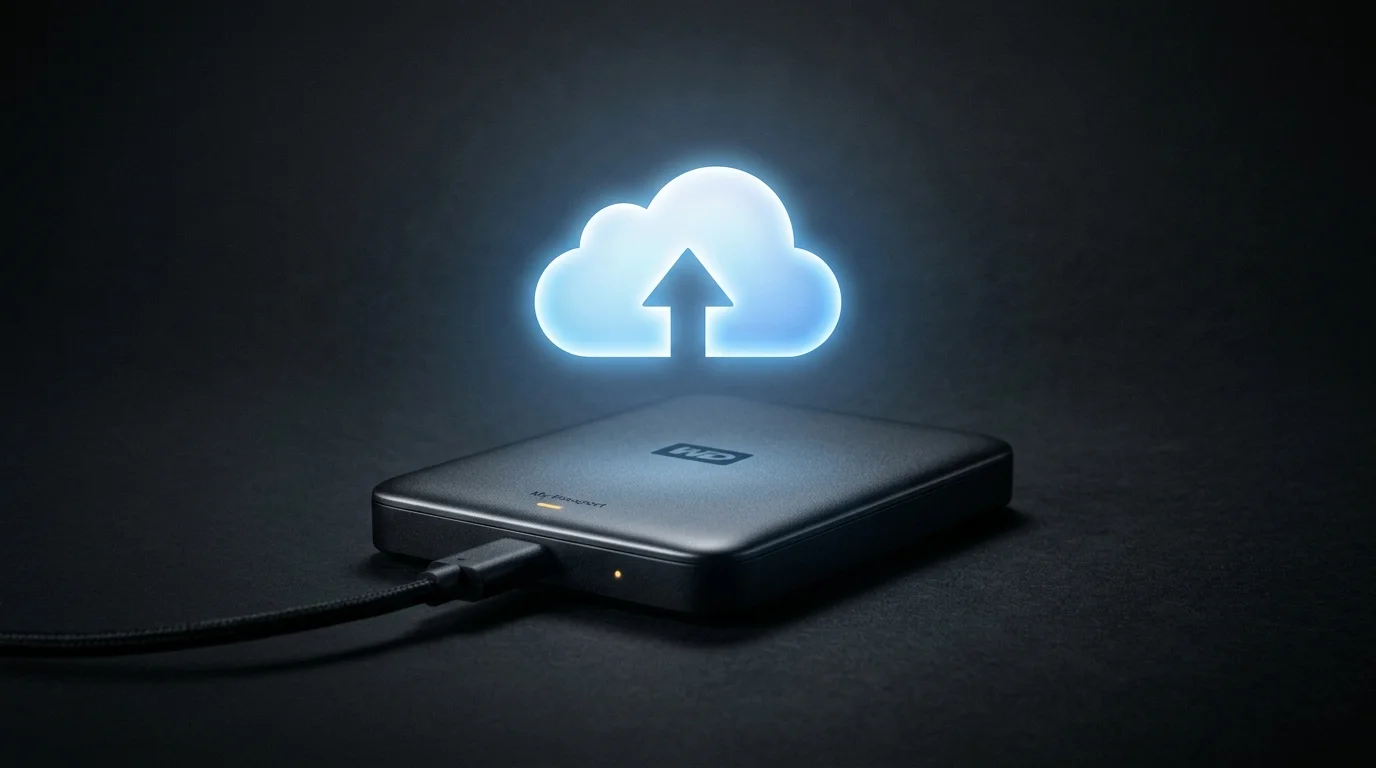
An external hard drive remains one of the simplest and most affordable ways to store a large photo library locally. Once you buy it, there’s no recurring subscription fee to worry about. Transfer speeds stay fast too, since everything happens over a direct connection rather than the internet.
The downside is that a single external drive is still a single point of failure. Drives can fail without warning, especially after years of continuous use. If you rely on an external drive, treat it as one piece of a larger backup system rather than your only copy of anything irreplaceable.
Network Attached Storage: The Step Up for Serious Photo Libraries
Network attached storage, or NAS, is essentially a small dedicated server that lives in your home and stores your files. Many NAS systems use multiple drives that automatically mirror data across each other. So if one drive fails, your photos remain safe on the others without any extra effort on your part.
This option makes the most sense for people with large, growing photo libraries that keep expanding year after year. It also suits anyone who wants local storage with built in redundancy rather than relying entirely on the cloud. It requires more setup than a simple external drive, and the upfront cost runs higher. But it offers a level of protection and control that a single drive simply can’t match.
A NAS also gives you the option to access your photo library remotely, similar to a private cloud you control yourself rather than one owned by a third party company. Families sharing one large photo collection often find this useful, since multiple people can access and add to the same library without emailing files back and forth or relying on one person’s phone as the master copy. The setup process takes some patience the first time around, but most modern NAS systems walk you through it with fairly simple software.
SD Cards and USB Drives: Fine for Transfer, Risky for Long Term Storage
SD cards and USB flash drives work great for temporarily transferring photos between devices. But they make a poor choice for long term storage. They’re small, easy to lose, and more prone to corruption or failure over time compared to a proper external drive or NAS system.
If you use SD cards from a camera, treat them as temporary holding space only. Move the photos to a proper backup system as soon as you reasonably can. Don’t leave your only copies of important memories sitting on a small card in a drawer somewhere.
Photo Organization Matters as Much as Backup
A backup system only helps if you can actually find what you’re looking for later. Photos scattered across random folders with generic filenames become hard to search through as a library grows into the thousands of images.
Many cloud services now include AI powered search and automatic organization by date, location, or even the people in your photos. This makes a real difference over time, especially compared to manually sorting through folders looking for one specific memory from years ago.
How Much Storage Do You Actually Need?
This depends heavily on how many photos and videos you take, and at what quality you shoot them. A casual phone photographer might use a few hundred gigabytes over several years without much thought. Someone who shoots frequently in high resolution, or records a lot of 4K video, can fill a terabyte or more surprisingly quickly.
It’s generally smarter to slightly overestimate your storage needs rather than underestimate them. Running out of space mid backup, or constantly deleting older photos just to make room, defeats the entire purpose of having a reliable backup system in the first place.
Building a Backup System That Actually Fits You
Before choosing a setup, think through your specific situation and what you actually need from it. If you want the simplest possible setup, automatic cloud backup alone beats having no backup at all. If you have a large existing photo library, pair local storage like an external drive or NAS with a cloud backup for true redundancy.
If you shoot RAW files as a photographer, prioritize a system that handles large file sizes without hitting storage caps quickly. If budget is a concern, start with one reliable method now and add a second layer as your library grows over time. And if you already use editing software like Lightroom or Photoshop, check whether your subscription already includes cloud storage you’re not currently using.
What It Really Comes Down To
There’s no single perfect way to back up your photos, and chasing one flawless method usually wastes more time than it saves. The safest approach combines more than one method, following the same logic as the 3-2-1 rule: multiple copies, multiple storage types, and at least one copy stored somewhere away from your home.
Whether you’re protecting a lifetime of family memories or a growing professional photo library, setting up a proper backup system now beats trying to recover what’s lost after a drive fails or an account gets locked out. A little effort today can save you from losing something you can never truly get back.
Frequently Asked Questions
It’s far better than no backup, but it isn’t a complete system on its own. A single cloud account is still one point of failure. Pairing it with a local copy on an external drive gives you real redundancy.
Keep three total copies of your photos, store them on two different types of storage media, and keep one copy off-site away from your home. This protects you even if one storage method fails completely.
No. SD cards and USB drives work well for temporary transfers, but they’re small, easy to lose, and more prone to corruption over time. Move photos off them and onto a proper backup system as soon as possible.
It depends on your library size. NAS makes the most sense for large, growing photo collections since many systems mirror data across multiple drives automatically. For smaller libraries, a cloud service plus one external drive is often enough.
It depends on how much you shoot and at what quality. Casual phone photographers might use a few hundred gigabytes over several years, while frequent high-resolution or 4K video shooters can fill a terabyte quickly. It’s smarter to overestimate than underestimate.